Transcriptions
Learn about transcriptions in Confer. Search and filter your history, inspect processing details, reprocess with different prompts, retry failed dictations, and copy your latest result.
Last updated October 18, 2026
Transcriptions are the result of recording dictation in Confer. Once you finish recording, the audio is transcribed, processed with your prompt, and saved as a transcription. The transcription is immediately available, and if you are focused on a text field in an app, it is pasted inside of it (unless you specify otherwise).
Confer doesn't keep your audio after a successful transcription. Transcriptions are stored on your Mac.
Viewing Transcriptions
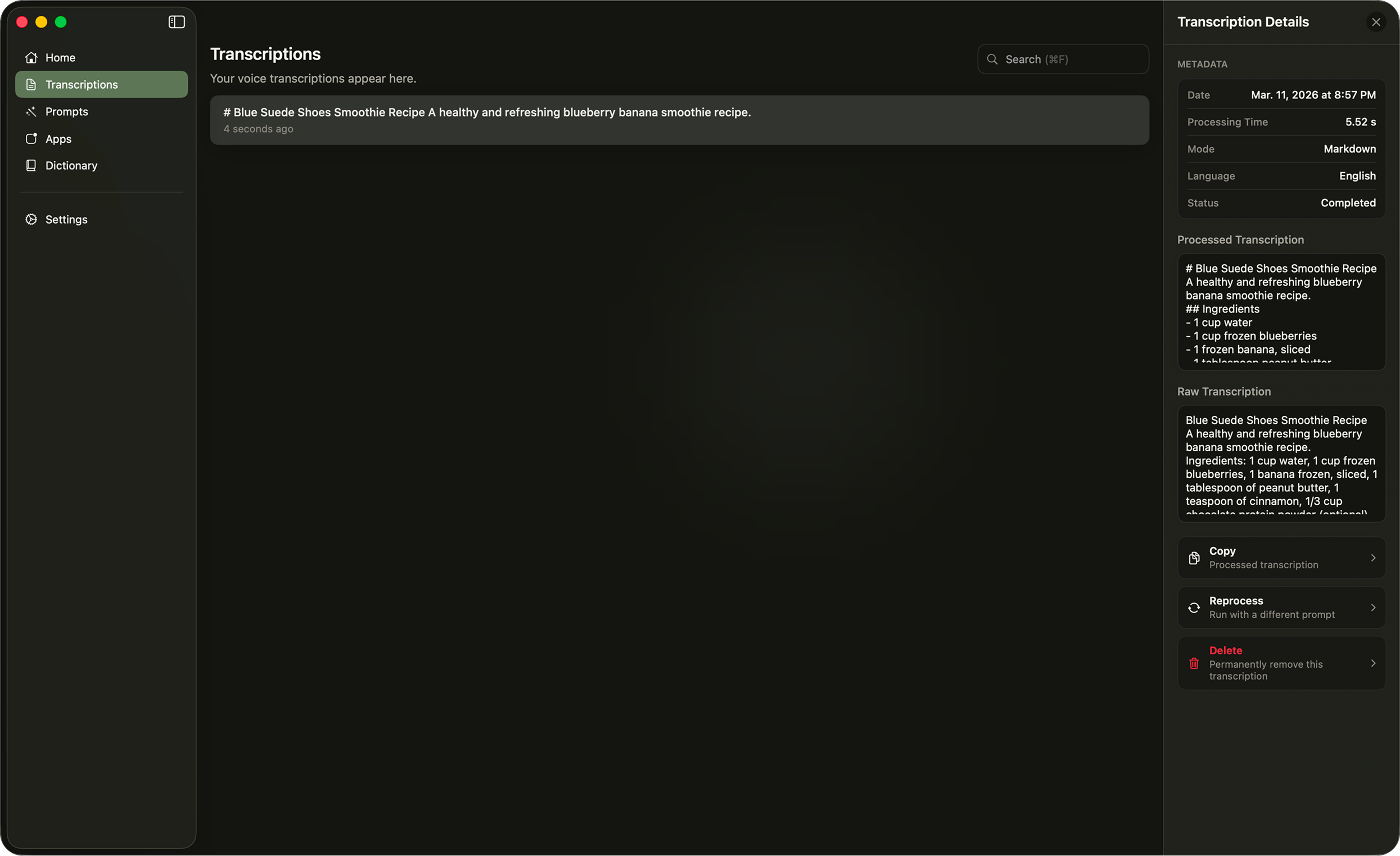
In Confer, the Transcriptions view is where you can view, filter, delete, and manage past transcriptions. All of your transcriptions are listed in the main section of this view, along with a count and the total time you've dictated.
Search, filter, and sort
Use the search field in the top right corner of the window, or press Cmd + F, to search the processed text, raw text, prompt name, and source app of every transcription.
Use the filter menu to narrow the list. Active filters appear as chips you can remove one at a time, or click Clear all.
- Date: any time, today, the last 7 days, or the last 30 days.
- Prompt: one or more prompts, including
No Prompt. - Status: completed or failed.
- App: the app you were dictating into.
- Session: transcriptions in a dictation session, or not in one.
You can sort by newest first, oldest first, prompt, source app, or status.
Transcription details
Selecting a transcription opens the right sidebar. Switch between the Processed and Raw output, and click Copy to copy whichever one is showing. Below the text, Confer shows when the transcription was created, the prompt used (listed as Mode), the language, and how long processing took.
Right click a transcription to copy it, run it with a different prompt, or delete it.
Reprocess Transcriptions
You can reprocess a transcription by selecting it and clicking Reprocess in the right sidebar, or by right clicking it and choosing Run with different prompt…. This opens the "Run with different prompt" dialog, where you can search for and choose a new prompt, including No Prompt.
Once processing is complete, Confer shows the new result and lets you copy it. Reprocessing creates a new transcription from the original raw text and does not overwrite the original. Your dictionary replacements are applied to the new result too.
Retry Failed Transcriptions
If a dictation fails, it appears in the list as a failed transcription. Select it to see what went wrong, listen to the recording, and click Retry to transcribe it again with the same prompt. A retried result is saved but not pasted automatically.
Confer keeps the audio of a failed transcription for 24 hours. After that, the failed transcription and its audio are removed.
Delete Transcriptions
To delete one transcription, select it and click Delete, or right click it and choose Delete. To delete several at once, click Select, choose the transcriptions you want, and click Delete. Delete All removes every transcription that matches your current search and filters. Confer asks for confirmation before deleting in bulk.
Copy Your Latest Transcription
To quickly copy your most recent transcription into any app, press Option + C, or choose Copy Latest Transcription from the Confer menu bar icon. Confer copies the latest transcription created on your Mac to the clipboard.
Turn Off History
If you'd rather not keep a history, turn off Keep transcription history in Settings under App. Confer stops saving transcriptions and dictation sessions, and hides the Transcriptions, Dictation Sessions, and Stats views.