App Configuration
Learn how to configure prompt defaults, paste behavior, and session auto-pause for each app you use with Confer.
Last updated October 18, 2026
Configure Apps
Confer lets you set defaults for each app you dictate into. To configure an app, go to the Apps view and click Add App. Search for the app in the list of installed applications and click Add App. Its settings will appear in the right sidebar, and changes are saved automatically.
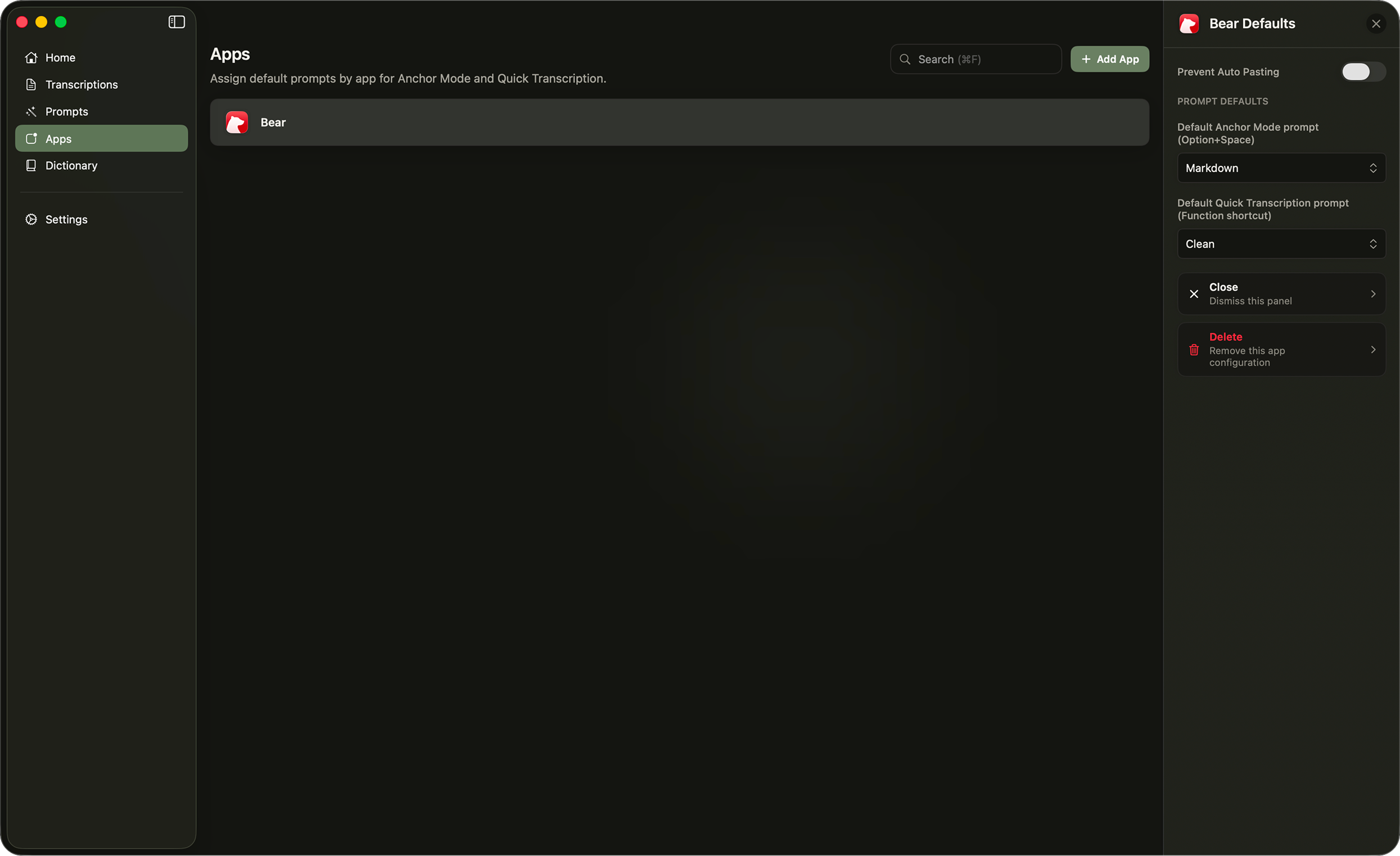
To stop configuring an app, right click it and choose Remove, or click Delete at the bottom of the sidebar.
Prompt defaults
Each app has two prompt defaults:
- Default Dictation prompt. Used for quick dictation and anchored dictation while you are in the app. It overrides the
Dictation promptsetting in Settings. - Default Dictation Session prompt. Used when you start a dictation session in the app.
If you move into another configured app during a session, Confer updates the selected prompt to match that app.
Prevent auto pasting
You may also prevent auto pasting in apps you configure. This is useful if you have a long recording that's being processed. You may want to switch between apps without needing to worry if the transcription will automatically paste in a random app. It's recommended you configure apps like this that are part of your workflow.
When Prevent Auto Pasting is on, dictation results stay in the review panel, where you can re-run them with a different prompt, edit them, and paste them yourself. During a dictation session, segments are saved to the session but not typed into the app.
Auto-pause dictation sessions
Turn on Auto-pause Dictation Sessions to pause an active session whenever the app comes to the front. This is useful for apps where you don't want Confer to pick up what you say, like a video call. The session resumes when you switch to another app.