Settings
Learn about your subscription, microphones, audio behavior, paste behavior, privacy, backups, shortcuts, and updates in Confer.
Last updated October 18, 2026
To open Settings, click Settings at the bottom of the Confer sidebar, choose Settings from the Confer menu bar icon, or press Cmd + ,. Settings is split into four tabs: Subscription, Audio, App, and Shortcuts.
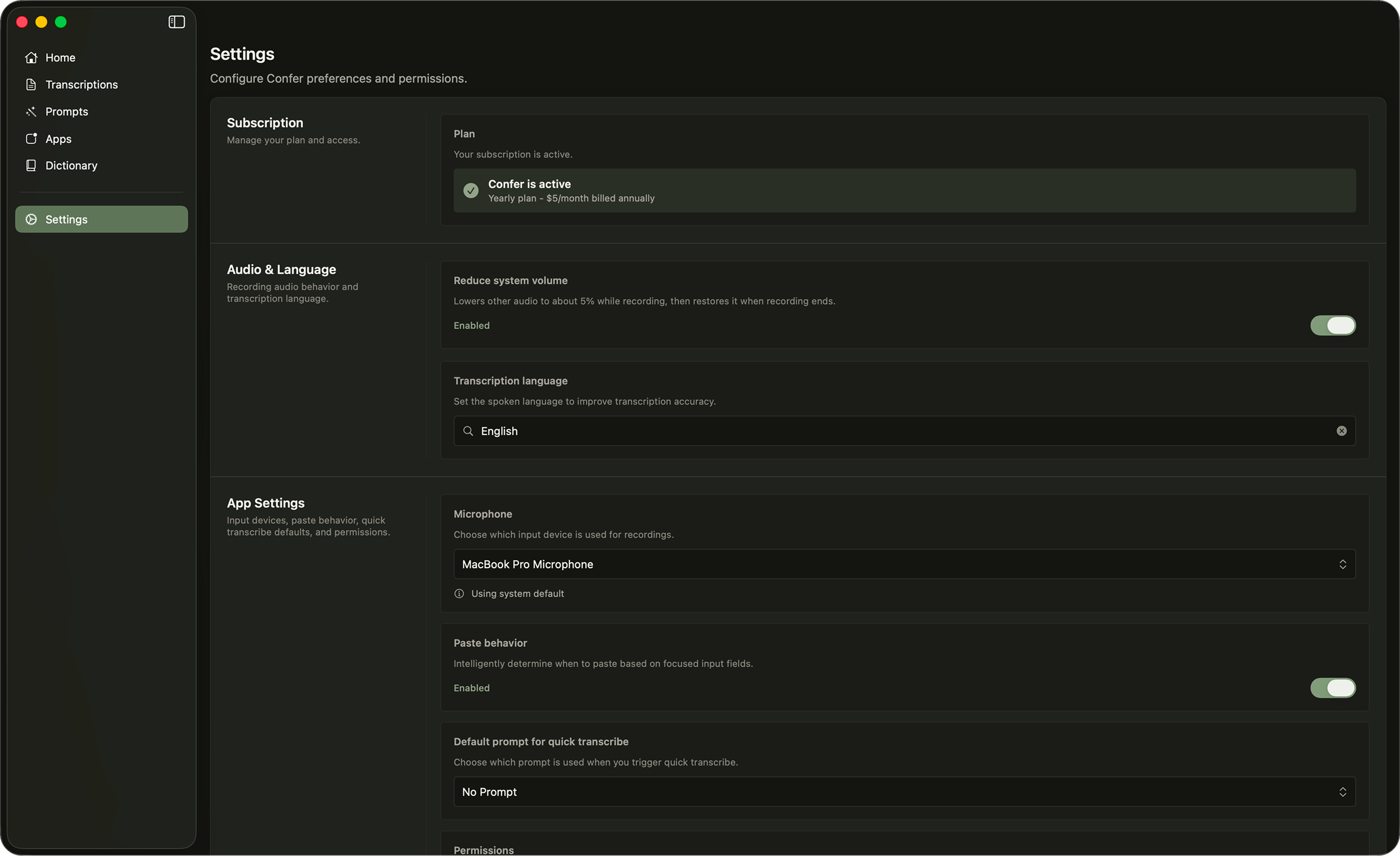
Subscription
When your subscription is active, this tab shows "Confer is active" along with your license code, which you can reveal or hide.
If you are not subscribed, choose a yearly or monthly plan and click Open Checkout to subscribe in your browser. Checkout emails you a license code. Paste it into the License field and click Activate License.
Devices
A license can be active on two Macs at a time. If you've reached the limit, Confer shows "Device limit reached". To free up a spot, choose Remove License from This Device from the Confer menu bar icon on the Mac you no longer use.
Manage billing
To update your card, change plans, or cancel, choose Manage Account from the Confer menu bar icon. This opens your account page in the browser, where you sign in with a code sent to your email and click Manage subscription.
Audio & Language
Microphone
You may change the microphone Confer uses to record under the "Microphone" setting. Confer uses your system default microphone until you choose another.
Transcription language
Confer supports over 50 languages. Choose the language you speak under the "Transcription language" setting to improve accuracy. You can switch it any time.
Recording cues
You may choose whether Confer plays start and stop sounds, separately for dictation and for dictation sessions, with Play Dictation audio cues and Play Dictation Session audio cues.
Turn off Show Dictation visuals to hide the recording panel and edge glow when you use quick dictation.
Edge glow
Edge glow shows a soft light along the bottom edge of the screen instead of a panel while you dictate. It's on by default. Click Preview edge glow to see an eight second preview without recording anything.
Reduce system volume
Sometimes you may want to have background music playing, watch a video, or have audio playing from your computer as you work. When Reduce system volume is on, Confer lowers other audio while you record, then restores it when recording ends. It's on by default.
App Settings
Dictation prompt
This setting allows you to set a default prompt for quick and anchored dictation. After recording, your transcription will be processed through this prompt, unless the app you are in has its own default in the Apps view.
Intelligent paste
With Intelligent paste on, Confer pastes results into the focused field when it's safe to. Turn it off to keep every dictation result in the review panel instead, where you can edit it and paste it yourself. Dictation sessions don't type text into apps while it's off.
Dictation sessions
Turn on Submit after each transcription to have Confer press Return after it types each finished session segment. This is useful in chat tools where each thought should be sent right away.
Privacy
- Keep transcription history. When on, transcriptions and dictation sessions are saved on your Mac. Turn it off to stop saving them, which also hides the Transcriptions, Dictation Sessions, and Stats views.
- Track source apps. Records which app you dictated into, for filters and the Top Apps stat. This is stored on your Mac and is never sent to Confer.
Data transfer
Use Export backup to save your prompts, app settings, and dictionary to a JSON file. Choose which of the three to include, pick a location, and click Save Backup.
Use Import backup to load a backup, for example on a new Mac. Importing adds new items and updates matching ones, and never deletes anything you already have.
Permissions
Confer needs Microphone access to capture audio and Accessibility access to type into other apps. This section shows the status of each, with a button to open System Settings.
Shortcuts
Here you can view and change every shortcut Confer offers, grouped into Dictation, Dictation Sessions, and Copy & paste. To change a shortcut, click its keys and press a new combination. You may also restore the defaults by clicking the Reset to Defaults button.
Updates
Confer checks for updates automatically and downloads them in the background. When an update is ready, Relaunch to Update appears at the bottom of the sidebar. Click it, or press Cmd + R, to restart into the new version. You can also choose Restart to Update from the Confer menu bar icon.
If you're in the middle of something, such as recording or reviewing a result, Confer waits and tells you what to finish first. To check manually, choose Check for Updates… from the Confer menu bar icon.