Dictionaries
Learn how to use dictionaries to improve transcriptions with Confer.
Last updated October 18, 2026
Dictionaries allow you to add find and replace in your Confer transcriptions. For example, if you have a certain website url or complex phrase you want to include in your transcription, you can use a simple word for it while dictating, then Confer will search for the word and replace it with what you specify.
Replacements are applied before text is saved or pasted, in every dictation mode and when you reprocess a transcription.
Create Dictionaries
To create a dictionary entry, click the New Entry button in the Dictionary view. This will open the "New Entry" form in the right sidebar. In the "Replace this" field, specify what you want to say and have replaced in the transcription.
Next, specify what the content will be replaced by in the "With this" field. Let's say you wanted to replace "Confer's website" with https://confervoice.app, the "Replace this" would be "Confer's website", and the "With this" would be "https://confervoice.app". Entries are saved automatically.
Matching options
By default, an entry matches exactly what you type in "Replace this", including capitalization. It also matches inside longer words, so choose phrases that won't appear by accident. Under "Matching Options" you can change this:
- Case-insensitive. Match regardless of capitalization. For example, "confer's website" and "Confer's Website" both match.
- Regular expression. Treat "Replace this" as a regular expression.
Regex
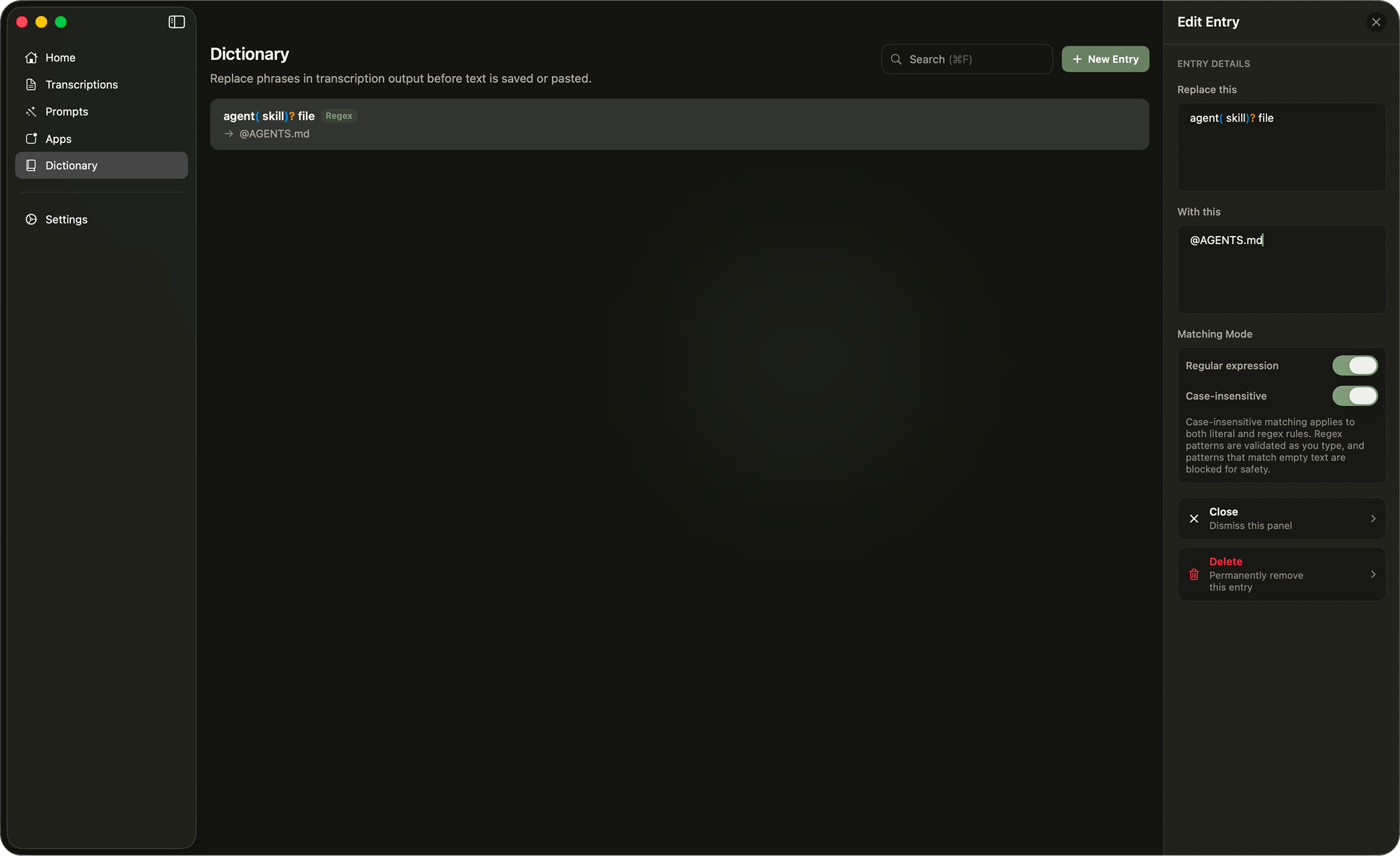
For more complicated use cases, you may enable the "Regular expression" toggle. For example, say you are working with agentic programming tools, and want to reference an AGENTS.md file in your transcription so that your agent may use it. The best way to do this in Confer would be to have a dictionary entry with "Case-insensitive" turned on that replaces agent( skill)? file with @AGENTS.md. Notice how we have the ( skill)?. Sometimes you may say "agent file", other times you might end up saying "agent skill file", this regex handles both cases to properly replace the words with the correct values.
"With this" is always inserted exactly as written, so regex references like $1 are not supported. Patterns that can
match empty text are not allowed.
Manage Dictionaries
Entries that use regular expressions are marked with a Regex badge. Right click an entry to edit or delete it. Use the search field, or press Cmd + F, to find entries. Search for "regex" to list only regular expression entries.